Desertcart purchases this item on your behalf and handles shipping, customs, and support to Belarus.
🌍 Stay connected anywhere, anytime — your Wi-Fi just got a glow-up!
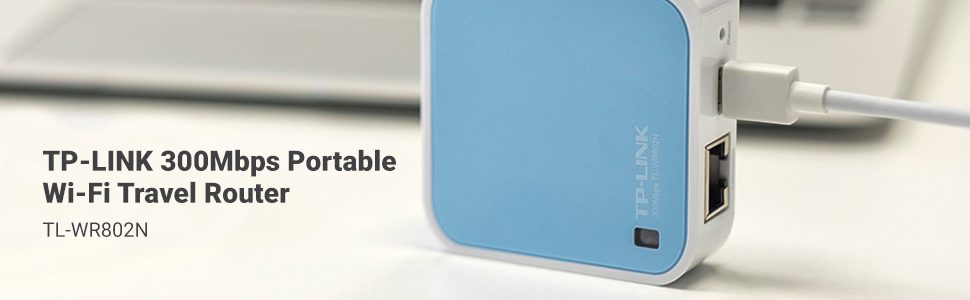
The TP-Link TL-WR802N is a compact, travel-friendly wireless N router delivering up to 300 Mbps on the 2.4 GHz band. It supports multiple operation modes including router, repeater, and access point, and features pre-encryption for quick, secure hotspot creation. Powered via USB or wall adapter, it’s compatible with a wide range of devices and operating systems, making it the perfect companion for seamless, lag-free connectivity on the move.


| ASIN | B00TQEX8BO |
| Antenna Location | Home |
| Antenna Type | Fixed |
| Best Sellers Rank | #2,562 in Computers & Accessories ( See Top 100 in Computers & Accessories ) #97 in Computer Routers |
| Brand | TP-Link |
| Built-In Media | Power Adapter, Quick Installation, Guide Resource CD, RJ45 Ethernet Cable, USB Cable, Wi-Fi Router TL-WR802N |
| Color | Basic |
| Compatible Devices | Personal Computer |
| Connectivity Protocol | Wi-Fi |
| Connectivity Technology | wireless |
| Control Method | App |
| Coverage | 2 Bedroom Houses |
| Customer Reviews | 4.0 out of 5 stars 10,566 Reviews |
| Data Transfer Rate | 300 megabits_per_second |
| Frequency | 2.4 GHz |
| Frequency Band Class | Single-Band |
| Item Dimensions L x W x H | 2.2"L x 2.2"W x 0.7"H |
| Item Part Number | 6935364071714 |
| Item Weight | 1.06 ounces |
| LAN Port Bandwidth | 10/100 Mbps |
| Manufacturer | TP-LINK USA |
| Maximum Upstream Data Transfer Rate | 300 megabits_per_second |
| Mfr Part Number | TL-WR802N |
| Model Name | TL-WR802N |
| Model Number | TL-WR802N |
| Number of Antennas | 2 |
| Number of Items | 1 |
| Number of Ports | 1 |
| Operating System | Microsoft Windows 98SE, NT, 2000, XP, Vista or Windows 8.1/8/7, MACOS, NetWare, UNIX or Linux |
| Other Special Features of the Product | Access Point Mode |
| RAM Memory Installed | 32 MB |
| Router Network Type | wireless |
| Security Protocol | WEP, WPA, WPA-PSK, WPA2-PSK |
| Special Feature | Access Point Mode |
| UPC | 840460604772 |
| Unit Count | 1 Count |
| Voltage | 100240 volts |
| Warranty Description | 2 year manufacturer |
| Wi-Fi Generation | Wi-Fi 4 |
| Wireless Communication Standard | 802.11n |
| Wireless Compability | 802.11n |
S**I
Got this for my Xbox One S. Didn't expect it to be this good!
I got the TP-Link N300 Travel Router (without the USB port) specifically for my Xbox One S. I didn't expect it to be this good! My university uses an indirect wi-fi login system (we connect to the open university network, which brings up an internet page asking us to login with our university ID and password to authenticate — similar in system to most hotels and airports), which the Xbox can't handle. So I decided to create a small internal network in my room that has its own SSID and password. I went with a mini router rather than just a range extender because this mini router has greater functionality for around the same price as most extenders. Size: As you can see in my pictures, the length/width is a little more than that of two quarters side-by-side, and the thickness of 3/4ths a quarter. I was surprised by how small it was when I opened it. Accessories: It comes with an ethernet cable, USB charger, wall adapter (though this is a bit clunky for modern standards), travel pouch, Wi-fi Info Card, and the standard instructions. Setup: Quick and easy, though you'll need to have a computer (I'm not sure if it works on a smartphone/tablet) to access the setup page. It took me about five minutes to set mine up in Access Point Mode. Basically, you plug in the router for your preferred mode as per the image/instructions. You then connect to your router from your computer using the password on the Wi-Fi Info Card and go to tplinkwifi(dot)net to do a quick setup. Here you can choose what mode you want to use the router in, change your SSID, password, etc. Then reboot to reconfigure the router. Modes: There are five modes -- two for travel and three for at home use. I went with the Access Point (AP) Mode for my uses, but I probably could have just gone ahead with the default Wireless Router mode. The ethernet port in my room was too far away from my Xbox to use Client mode. Regardless, it’s working great. I’ve attempted to give explanations for the different modes below, but I’m not particularly knowledgeable in this so please correct me if there are any inaccuracies. For Travel: 1. Wireless Router (default): Basically, it turns a wired internet connection wireless. 2. Hotspot Router: I would best describe this as taking an open (and unsecured) wi-fi connection and making it password protected (personal hotspot). The router takes the unsecured wi-fi connection and creates a secured wi-fi/wired connection, and you can have one device connected directly to the router and have the rest of your devices using your protected wi-fi at the same time. Useful for connecting to the internet in public places like cafes. I believe it's also great for hotel rooms where only one device can use the internet per room. Connect this and all your devices can use the internet. For Home: 3. Range Extender: Similar in nature to the Hotspot Router Mode -- it goes wi-fi to wi-fi, except this mode uses your home's network and maintains the same password as your home's AP. It's to extend your home's wi-fi to reach any wi-fi dead spots in your house (like the attic or basement, or that weird corner of the room where you like to huddle and binge watch Netflix but just happens to be the same place where wi-fi connectivity is super sketch and the video never loads). You can use the router for both wired and wi-fi connections simultaneously. 4. Client: Sort of the opposite of the Wireless Router mode -- this takes a wi-fi network and makes it wired so that devices that don't have wi-fi capabilities can connect to the internet. It's great for smart TVs, game consoles, printers. 5. Access Point: Same as the Wireless Router mode, takes a wired network and makes it wi-fi. Speed: There wasn’t really any compromises made with the download speed. My university has incredibly fast wi-fi (though my dorm isn’t as fast as our libraries), so I’m glad that wasn’t sacrificed. The upload speeds weren't as consistent, but still not bad. You can see the speed test results in my pictures. Overall, I'm really liking this mini router. The size is perfect for travel (it's smaller than my Macbook Pro's MagSafe adapter…!), and the setup was straightforward. Definitely a recommended buy.
S**N
Review for TR-WR802N - Excellent Router, Must have for Travelers and IT Field Professionals on the go
I do a lot of new data center setups where there's no internet connections and was looking for something that would be able to bridge my phone's hotspot to ethernet only servers so they can access the internet. This does that and alot more. I can also use this in hotels to connect devices such Chromecast, and anything without web browser. The most useful feature is the WISP mode which basically connects to a wifi network as a client such as hotel wifi, and then broadcasts and shares that wifi as a "second SSID" with with your own name and password that you can then connect multiple devices to. For the techies, the devices you connect using this mode are NAT-ed , so the hotel side wifi will only see one client , your wifi hotspots mac and address. Overall this is a great device. Only wish the throughput was a bit better which is not bad but off my phone hotspot direct i am getting about 20MBPS down, through the router in WISP mode its about 8-12, which is not bad for a portable low power device. Otherwise great product. Also looked at the hootoo but didn't really need the USB sharing or really care for its GUI interface. This is packed with features and great for both techie and no techie users, price is right and is feature packed. Here's a breakdown of the modes and what they are useful for. * WISP/Hotspot Mode - Good for Connecting Chromecast or any devices without a Web browser to a Captive portal wifi network. This basically connects to One SSID as a client for instance Hotel Wifi, then Broadcasts a second SSID ( one that has your own custom name and password ), and routes it so that many users can connect. As long as one device connected behind this captive portal interface authenticates, all devices will be able to access the internet. Pretty Neat! * Router Mode - Works as a standard Router which most are familiar with. You connect the wired section to your DSL/CABLE/Fiber modem and allows many users to connect. * Access Point - Works similar to the above but without Router functionality. This basically allows you to connect wireless devices to a wired network, this requires a router already existing somwhere on the wired network in order to access the internet. * Range Extender - Acts as a wireless repeater to extend signal strength, nothing else. * Client - Also known as Wireless bridge mode. You connect this router to another SSID or wifi network, and it allows you give wireless access to devices that DO not have wireless capability already, only ethernet. This feature does not use the built in router and relies on a wifi network that already has a router established.
T**Y
Useless in every way
I purchased one of these with several use cases in mind. Unfortunately, the TP-Link N300 failed all of them. I spent some time testing the device at home and setting it up, and it appeared to be working fine. Once at the hotel, however, it turned out to be a pointless lump of plastic. Not only did I waste 3 hours of my time, but I ended up exactly where I started, minus the money I wasted. Use case 1: Connect to hotel wi-fi and use my Apple TV Status: Failed I plugged in the router, waited for it to finish booting up... and kept waiting. And waiting. Endless flashing light. Wi-fi network for the TP-Link was not being broadcast. Moved the router to different points of the room, no help. Checked hotel wi-fi signal strength, it's great. Unplugged, waited, plugged back in. Same result. After 5 attempts, I was finally able to connect to the TP-Link network by manually entering the SSID. I spent the next 45 minutes in the Tether app trying to connect the TP-Link to the hotel wi-fi network. Failed, failed, failed, app crashed, failed, failed, failed, partial success but the process hung up, failed, router reboot, failed, failed, moved router, failed, router reboot, failed, router hard reset, reconfigure, failed, failed, router hard reset, reconfigure, SUCCESS. Finally. But flashing light all the way. Who knows what that means at this point. The app says it means still booting and please wait but somehow I doubt it. Connected an iPhone and an iPad to the TP-Link and tested the network and it seemed to be working. Connected the Apple TV via ethernet, could not authenticate to TP-Link network. Tried again, could not authenticate. Tried 6 more times, finally authenticated, SUCCESS. Aaaand no internet connection. Checked the network again from my other devices and nope, it had stopped working at some point. I went through this whole process from the beginning another 3 times and never quite got as far again. Could not use my Apple TV. Fail. Use case 2: Connect to hotel wi-fi and use my Nintendo Switch Status: Failed The debacle of use case 1 at least taught me the correct sequence of witchcraft, router resets, and arm waving to get the TP-Link booted up and broadcasting a visible network. As before, it took dozens of attempts to get it to connect to the hotel wi-fi network (which I had quadruple checked as having a very strong signal where I was attempting to use the TP-Link). After much hair pulling, waiting, rebooting, and resetting, I got the TP-Link connected to the internet and ready to go. Tested the connection with two iOS devices and it seemed ok. Got out my Switch but it couldn't see the TP-Link network... so this problem again. Manually entering the network details didn't work. Started the process over from the beginning 3 more times and finally got the TP-Link connected to the internet AND the Switch connected to the TP-Link. Yay! Aaaaaand no internet connection again. Retrying, setting up port forwarding, none of it worked. Fail. Use case 3: Boost the hotel wi-fi network coverage within the room. Status: Failed You can see where this is going. The idea here was to put the TP-Link in a good coverage zone and have it fill in the shadow zones elsewhere in the room. Ha. Pointless exercise. Fail. After an extremely annoying 3 hours of my life, I threw the TP-Link in the trash, packed up the Apple TV I brought with me for absolutely zero purpose, opened a beer, and started watching terrible hotel television. In conclusion, I am happy to recommend this product to masochists, people who like blinking lights, and anyone interested in wasting time and money.
S**E
Great Price, Clever Design, Mediocre Performer
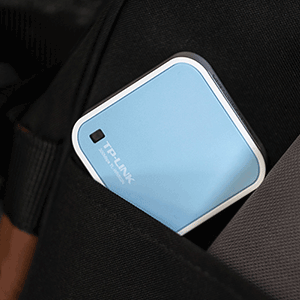
For the money, this is a decent little gadget and does what it's supposed to do. Setup was quite easy via the included instructions - you basically plug this in, let it boot up, and then "join" it from your computer as a wireless network with the password on the included card, which has the device name and wireless password, as well as the configuration page ID and password. Then, you go to ttplinkwifi.net, log in, and follow the prompts as to how you want to use it. I have to say that the tplinkwifi site was well designed and very easy to navigate. You can set this up as a router, and extender for an existing wireless network, and access point (a wireless connection point connected to your main router via ethernet), or client (it joins an existing wireless network as a device, and creates an ethernet "bridge" where you can connect ethernet devices to it, but cannot join it wirelessly). I bought mine for the last option. Note that it only has one ethernet port (which is NOT gigabit), though you could technically connect it to an ethernet switch to allow more devices to connect. This thing is also TINY and a cute little guy - will easily fit into a computer or even tablet bag, or your pocket, to take with you anywhere. It's maybe a couple of inches square and less than an inch thick. Comes with a USB cable (micro at one end to plug into the device, standard type "A" to plug into a USB port of the included power transformer. The box also includes a mini ethernet cable. It also has an indicator status light. Performance was adequate, but not great. For the price and to serve as a temporary solution, I couldn't really complain, but for any kind of heavy use, it would be disappointing to many people. I have a strong Apple Airport-based wireless network (two Airport Extremes, one extending the other) with 300 MB/s internet service. I normally can even get 200-240 MB/sec at the far end of the house where my computer is, wirelessly through the extender, but was only getting about 5 MB/sec with this in the same location with this device (through ethernet, plugged into my laptop). I get about 285 MB/sec with the same laptop plugged into the extender's ethernet port. I do realize it's a standard ethernet port and not gigabit, but even my old Airport Express in client mode got about 95 MB/sec via its ethernet ports, and it was an "N" router without gigabit, also (but also four times the price). I tried this again, closer to the main Airport Extreme. Best I could get with this was about 25 MB/sec, <10 ft away. On my laptop in the same location, I was getting around 300. I didn't expect it to perform as well as a much more expensive product, but admit I expected better than this. The connection, however, in any location seemed very stable.Still, for <$30, and considering its versatility and size, I only knocked off one star, and this will come in handy if I ever need it to connect an ethernet-only device that doesn't demand high speeds, like a LAN-only printer in another room.
M**I
Great portable router
**Product Review: TP-Link TL-WR802N** I recently purchased the TP-Link TL-WR802N, and I must say it has exceeded my expectations in terms of performance and versatility. This compact wireless router is a game-changer for anyone in need of a reliable and portable networking solution. *Design and Build:* The TL-WR802N's sleek and compact design makes it incredibly easy to carry around, fitting snugly into my pocket. The build quality feels solid, and the device has a modern, unobtrusive look. Setting it up was a breeze, thanks to the intuitive design and clear instructions provided in the user manual. *Performance:* In terms of performance, this router delivers excellent speeds and a stable connection. Despite its small size, it handles multiple devices seamlessly, making it ideal for both home and on-the-go use. I was particularly impressed with its ability to maintain a strong signal even in areas with weak Wi-Fi coverage. *Versatility:* What sets the TL-WR802N apart is its versatility. It can function as a router, access point, client, or repeater, giving users a wide range of options to suit their specific needs. This flexibility makes it a valuable tool for various scenarios, from creating a temporary Wi-Fi hotspot to extending the range of an existing network. **Service Review: Jonaire** I also want to commend the excellent service provided by Jonaire. From the moment I placed my order to the post-purchase inquiries, their customer service team demonstrated professionalism and responsiveness. The staff was knowledgeable about the products and provided clear, concise answers to my queries. *Customer Support:* Jonaire's was a pleasure to deal with. He was prompt in addressing my concerns and provided helpful guidance when I needed assistance with the product setup. His commitment to customer satisfaction is evident, and it greatly enhanced my overall shopping experience. In conclusion, I highly recommend both the TP-Link TL-WR802N for its impressive performance and versatility, and Jonaire for his exceptional customer service. My experience with both the product and the retailer has been overwhelmingly positive.
U**2
A bit slow and unreliable.
Generally feel confident in TP-Link products but this feels outdated out of the box. it does exactly what I need it to do, as I’m a flight attendant and I’m in and out of hotels all the time; it’s so convenient to just plug this thing in, point it at the right network and be on my way (WISP mode). however, it seems to only support the 2.4g network which is of course slower than the more current 5g standard, and the network will sometimes just crash altogether. I’ve never had more than 4 or 5 devices connected to it at one time so I wouldn’t think that I’m stressing it out too much, but it’ll just bog down and become unusable sometimes. usually needs a cold boot, just pull the power entirely and let it sit for a minute, then bring it back up and everything’s fine. The network selection could be a little more user-friendly as well, and with a memory of previous connections too, that would be so nice to have. Til then, it’s just so-so. I imagine there’s a better product out there, faster. but this also gets the job done so ¯\_(ツ)_/¯
N**T
Amazing little router; small setup required for some uses.
Amazing little router! Have used it for a quick WiFi access point when my primary router was having trouble, as well as a client, which allowed me to connect an Ethernet Only device to my home WiFi network. The TP-Link N300 doesn't support gigabit, so it isn't exactly the fastest you can get, but it's an amazing little router at an amazing price point. The signal strength is great for its size, and the speeds are within expectations. Setup was a little bit tricky. It is easy in most cases; just connect to it over WiFi, and log in through your browser to begin setup. However, when I first tried to setup the N300 as a client (so it can provide WiFi access to an Ethernet Only device), it allowed internet access right away, but did not allow the connected device to be accessed over LAN. Even once I understood the problem, the N300 seemed to resist being setup properly, but after setting and saving the configuration a few times it stuck and since then it has worked perfectly when I switch it into client mode. The issue is that the N300 expects a different local IP subnet than my primary router, and this prevented the connected device from accessing anything else over LAN properly. I tried changing this several times, but it seemed to reset itself to the default value each time. It took a few tries, but once I got the N300 to accept the correct local IP range, it worked perfectly. I can now access the connected device over LAN, and the connected device has internet access as well. I would definitely recommend this to pretty much everyone. You never know when your router might crap out, or when you may need to hook up an Ethernet Only device far away from your router, and don't want to lay long runs of ethernet cord. There is a small bit of setup required, but the interface is clean and simple, and for anyone with basic computer skills it should be pretty easy to setup. It's basically just plug-and-play sans clicking through a quick setup so it knows how you want it to function.
D**S
Perfect for smart devices
I wish I could give it 10 stars!! This TINY little router transmits a strong 2.4 GHz signal, perfect for travel or for connecting smart devices at home. My internet service provider recently “upgraded” me to a “smart” modem/router that provides both 2.4 and 5 GHz bands that seamlessly share the same network name and password, and the ISP doesn’t allow any customer management of the router. All of my smart devices, as well as my printer, run ONLY on the 2.4 GHz band. I was able to pair everything to the new router without too much trouble except for a MyTouchSmart in-wall switch that controls my rooftop Christmas lights. I spent countless hours trying everything I could think of or find online to pair that switch. I even considered replacing the switch with a different brand , but the cost of a new switch plus the electrician’s fee was too much, and I had no guarantee that I would be able to pair a different brand anyway. So I decided to purchase a simple router that would let me specify the 2.4 GHz band, and I happened to see this one, and I’m so glad I chose it. It’s great for several reasons. 1) It’s so tiny! I have it tucked away in a back room near the wall switch I need to connect to it. 2) It’s 2.4 GHz only, solving the smart device limitation problem. 3) It doesn’t have to be connected directly to my ISP’s modem/router with an Ethernet cable (although it has that option). It can connect via WiFi to my existing network, then it transmits a 2.4 GHz signal with a different network name. I connected my smartphone to that new network, then I was able to pair the MyTouchSmart switch in about 30 seconds.
9**0
Set up
Easy set up , network flows through
Ö**N
harika ürün
harika ürün smart tv wi-fi çipi tarla olmuştu ama LAN çalışıyordu bana 4000 tl fiyat çıkardılar bu ürünle hallettim acayip ucuza
A**R
Prima acces point
Werkt helemaal dikke prima, ik gebruik hem als acces point om de camera's die buiten hangen een betere dekking te geven en de garagepoort in wifi - bereik te krijgen. instellingen zijn erg eenvoudig , als nou niet bepaald IT specialist.. had het spul zo aan de gang. Netwerkkabeltje , adapter en usb kabeltje zijn trouwens gewoon meegeleverd .
J**R
A Must-Have for Travellers!
Great value, perfect little access point for traveling or work. Most hotels these days have an Ethernet port in the room but it’s never right beside the bed or the comfortable chair- it’s always on the desk as if you’re gonna be sitting at their desk to work instead of the balcony! This little access point gives you freedoms to move around with much better connectivity than the hotel’s guest wifi provides.
K**N
Five Stars
Works great. Does what it states. I recommend this device.
Trustpilot
1 week ago
3 weeks ago